How to Compress a Video So You Can Email It
Hit the 25 MB email limit? Here's how to shrink a video enough to attach it — without turning it into a blurry mess — right in your browser.
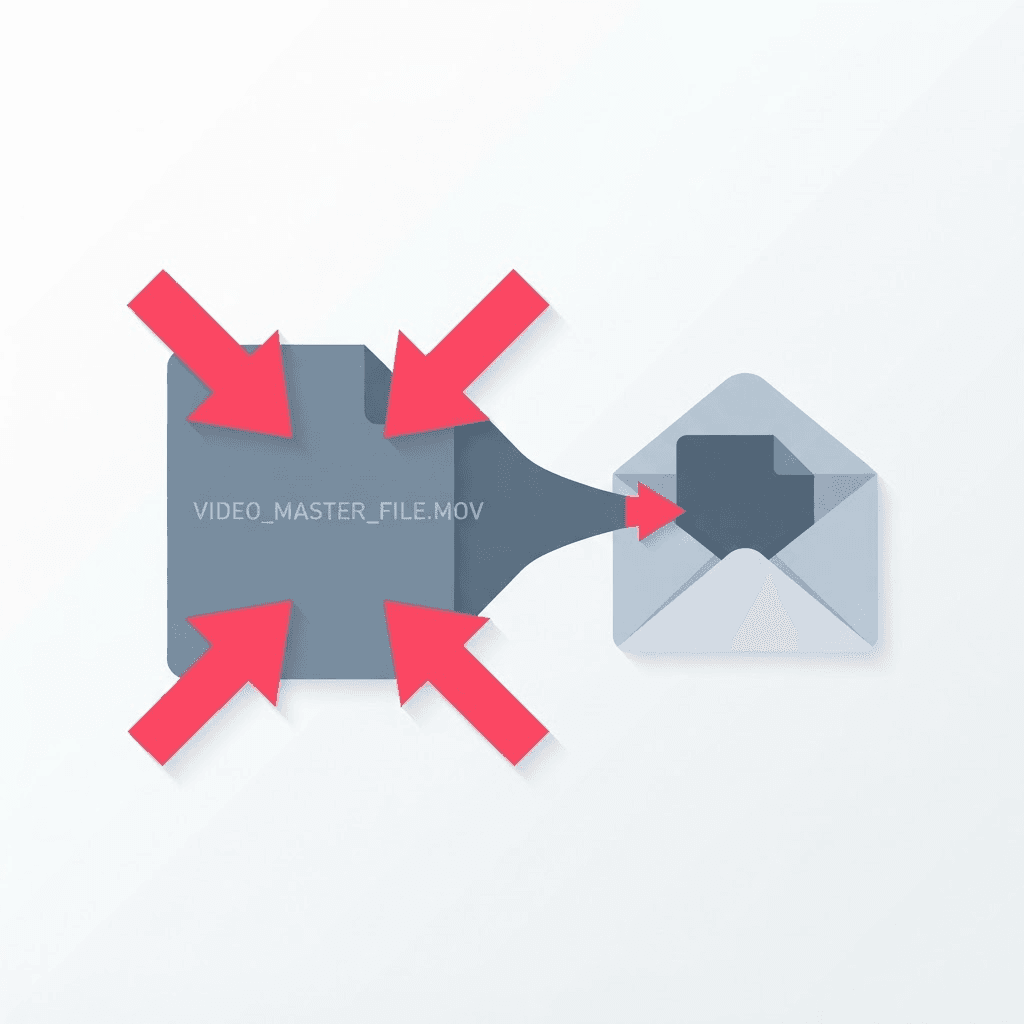
Everyone runs into this eventually. You try to email a short clip — a 40-second video from your phone — and the email bounces, or the attach button just refuses. Gmail caps attachments at 25 MB. Outlook is stingier at around 20 MB. A minute of phone video can easily be 150 MB or more, so you're nowhere close.
You've got two options: upload it somewhere and send a link, or make the file smaller. If the recipient just needs to see the video and not edit it, compressing is the cleaner move — they get an actual attachment instead of a link to click and trust.
Shrinking the file
Drop the video into the compressor
It processes in your browser, so even a large file doesn't get uploaded anywhere.
Pick a target
Aim for under the recipient's limit — under 20 MB is a safe bet for both Gmail and Outlook.
Export and attach
Download the smaller MP4 and attach it like any normal file.
The email limits, so you know what you're aiming for
- Gmail: 25 MB per message (larger files auto-convert to a Google Drive link).
- Outlook / Outlook.com: around 20 MB for attachments.
- Yahoo Mail: 25 MB.
- iCloud Mail: 20 MB before Mail Drop kicks in.
- Corporate/Exchange servers: often 10 MB, and stricter than the consumer services — when in doubt, aim low.
Why the video looks fine even after shrinking
Phone video is wildly over-encoded for what most people do with it. Your camera records at a high bitrate to preserve detail you'll never notice on a laptop screen or in an email preview. Compression throws away that redundant data — not the picture itself. Drop a 150 MB clip to 15 MB and, watched at normal size, most people genuinely can't tell. You only see the difference if you blow it up on a 4K display and go looking.
If one pass isn't small enough, lowering the resolution to 720p usually does it. For an email attachment nobody's watching on a cinema screen, 720p is plenty and cuts the size dramatically.
Three levers that control file size
If you want to be deliberate about it rather than guessing, size comes down to three things. Understanding them means you can hit a target on the first try instead of compressing five times.
- Resolution — dropping 1080p to 720p roughly halves the size on its own, and 720p is fine for most viewing.
- Bitrate — the single biggest lever; lower bitrate means a smaller file, with quality falling off only when you push it too far.
- Length — you can't compress a ten-minute video into an email attachment, so trimming to the part that matters is often the real fix.
When to send a link instead
Compression has a floor. If you're trying to email a ten-minute video, no amount of shrinking gets it under 25 MB without making it unwatchable. Past a couple of minutes of footage, stop fighting it — upload the file somewhere and send a link. Compression is the right tool for short clips, not feature films. Knowing which situation you're in saves you a frustrating half hour of diminishing returns.
A realistic before-and-after
To set expectations with actual numbers: a one-minute 1080p clip straight off a modern phone often lands somewhere around 130–170 MB. Compressed sensibly for email, that same minute drops to roughly 12–18 MB �� comfortably under Gmail's cap — and on a laptop or in an email preview it looks essentially the same. Drop it to 720p as well and you can get under 10 MB, which even strict corporate mail servers accept. The footage nobody's projecting onto a wall doesn't need the bitrate a phone records at.
Why phone video is so big in the first place
It helps to understand what you're actually shrinking. Phones record at a high bitrate and increasingly at 4K and 60fps by default, capturing enormous amounts of detail per second so the footage holds up if you ever edit or crop it. That's great for archiving and terrible for email. Most of that data is invisible at the size anyone will actually watch the clip. Compression identifies the redundant information — areas that barely change frame to frame — and discards it, keeping the picture your eye registers while dumping the part it never notices.
The alternatives, and when each one wins
- Compress: best when the recipient just needs to watch a short clip and you want it as a real attachment, not a link.
- Cloud link (Drive, Dropbox, WeTransfer): best for long videos, high-quality masters, or sending to someone who'll download and edit it.
- Trim then compress: best when only part of the video matters — cutting to the essential 20 seconds does more than any codec setting.
- Lower the resolution: best as a second pass when one compression wasn't enough; 720p roughly halves the size again.
Protecting quality while you shrink
Compression isn't all-or-nothing — a few choices keep it looking good. Compress from the original file, never from an already-compressed copy, because each pass stacks new losses onto old ones. Match the resolution to how it'll be watched rather than reflexively keeping 1080p. And if the tool lets you choose, a modern codec squeezes more quality into the same file size. Do those three things and 'compressed' stops meaning 'blurry' and starts meaning 'exactly as good as it needs to be, and a tenth of the size.'
Try the Video Compressor
Shrink video in your browser — free, no sign-up.
Frequently asked questions
Will compressing ruin the quality?
For normal viewing, no. Compression removes redundant data your eye doesn't register at typical sizes, so a well-compressed clip looks nearly identical.
Is my video uploaded anywhere?
No. The compressor runs in your browser, so the file stays on your device.
What size should I target for email?
Under 20 MB is safe for both Gmail (25 MB cap) and Outlook (~20 MB cap). For corporate email, aim under 10 MB.
What if the video is still too big after compressing?
Drop the resolution to 720p and trim to the essential part. If it's a long video, send a shareable link instead — compression can't shrink a ten-minute clip to email size without wrecking it.
How much smaller can I expect the file to get?
A one-minute 1080p phone clip of ~130–170 MB typically compresses to around 12–18 MB for email, and under 10 MB if you also drop it to 720p — all while looking essentially the same at normal viewing size.
Why is my phone video so large to begin with?
Phones record at high bitrates and often 4K/60fps by default to preserve detail for editing. Most of that data is invisible at the size people actually watch, which is exactly what compression removes.
Should I compress or just send a link?
Compress for short clips the recipient only needs to watch. Send a cloud link for long videos, high-quality masters, or files someone will download and edit — compression has a floor it can't go below without wrecking the video.
Does compressing the same video twice make it worse?
Yes. Each pass stacks new losses on old ones. Always compress from the original file rather than from an already-compressed copy.