How to Crop a Video to 9:16 for TikTok and Reels
Turn a widescreen video into a vertical 9:16 clip for TikTok, Reels, and Shorts — crop and reframe it in your browser without black bars or stretching.
You shot a video horizontally, or you're repurposing something that was made for YouTube, and now you need it vertical for TikTok, Reels, or Shorts. Uploading a 16:9 video to a vertical feed gets you one of two bad outcomes: thick black bars top and bottom, or the platform doing its own dumb crop that lops the head off whoever's on screen.
The fix is to crop it yourself to 9:16 so you control what stays in frame. It's less an editing skill and more a two-minute reframing job.
Reframing to vertical
Load the video
Drop your clip into the cropper. It works in the browser, nothing uploads.
Choose 9:16
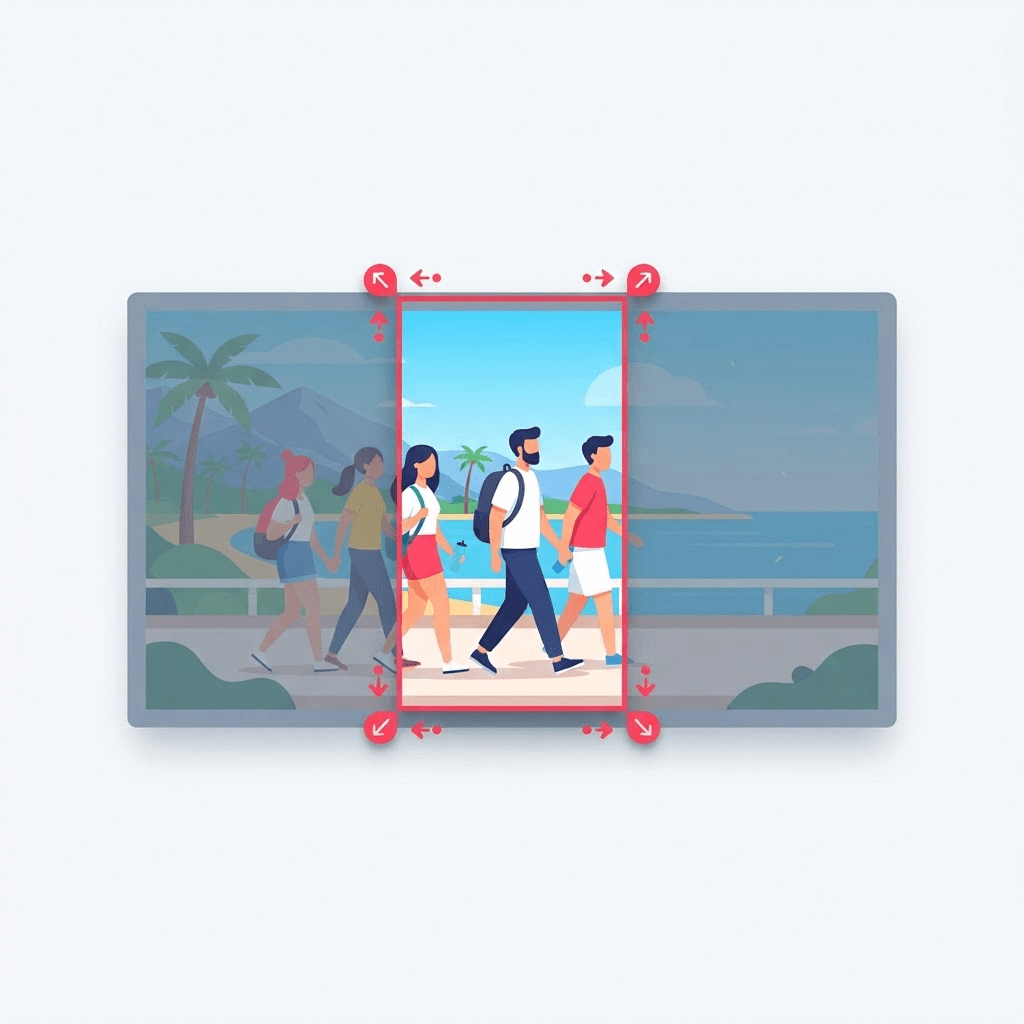
Pick the vertical preset. A 9:16 frame appears over your video so you can see exactly what will be kept.
Position the subject
Drag the frame so the important part — usually a face or the action — sits comfortably inside it.
Export the MP4
Download the cropped vertical clip, ready to upload without bars or auto-cropping.
Leave a little breathing room at the top of the frame. TikTok and Reels stack the caption, username, and buttons over the bottom-right, so anything critical down there can get covered by the interface.
Mind the safe zones
Every vertical platform layers its interface over the bottom and right edge of your video — the caption, the sound name, the like/comment/share buttons, the follow prompt. If your subject or on-screen text drifts into those areas, it gets covered. When you position the crop, mentally reserve the bottom fifth and the right edge for the platform, and keep anything that matters in the upper-center of the frame. This one habit separates clips that look native from clips that look like reposts.
9:16 isn't the only ratio worth knowing
- 9:16 (vertical) — TikTok, Reels, Shorts, and Stories. The default for short-form.
- 1:1 (square) — feed posts on Instagram and Facebook, where square holds more height than a landscape clip.
- 4:5 (portrait) — Instagram feed's tallest allowed ratio, so it takes up more screen than square without going full vertical.
- 16:9 (landscape) — YouTube and anywhere watched on a computer.
Crop once, or reframe as you go
A simple crop keeps the same frame position for the whole clip, which is perfect when your subject stays put. If the action moves around — someone walking across the shot — you may need to crop a couple of segments separately and stitch them, or accept a slightly wider framing that keeps everything in view. For most talking-head and static clips, a single crop is all it takes.
Shooting with the crop in mind next time
If you already know a video will end up vertical, you can save yourself the reframing headache by filming for it. Keep your subject centered, avoid important action at the far left and right, and if your camera lets you, record in a taller ratio to begin with. Cropping is a great rescue tool for footage you already have — but the cleanest 9:16 clip is one that was framed for 9:16 from the start.
Cropping vs. adding blurred bars
There are really two ways to fit a horizontal video into a vertical frame, and they serve different goals. Cropping trims the sides away so your subject fills the whole screen — the most immersive, native-looking result, at the cost of losing whatever was at the edges. The other approach shrinks the whole widescreen clip to fit the width and fills the empty top and bottom with a blurred, zoomed copy of the video. That keeps every pixel of the original in view, which matters when the framing is wide and you can't afford to lose anything. Neither is 'correct' — pick based on whether filling the screen or keeping the full frame matters more for that clip.
What happens to resolution when you crop
Cropping is a trim, not a zoom, so it doesn't stretch or soften the picture — but it does throw away pixels. Take a 1920×1080 clip and crop it to 9:16 and you end up roughly 608×1080, because you're keeping the full height and cutting the width. That's still comfortably above what TikTok, Reels, and Shorts display, so it looks sharp. The trap is cropping a small region out of an already low-resolution video: if you zoom into a tiny slice of a 720p clip, the result can look soft simply because there weren't many pixels there to begin with. Start from the highest-resolution source you have.
Keeping your captions from getting cropped out
If the original video already has burned-in captions or on-screen text, cropping to 9:16 can slice them off at the sides — a common and frustrating surprise. Two ways around it: crop first and add fresh captions to the vertical version afterward, which is usually cleaner, or check during positioning that any existing text sits inside the 9:16 frame before you export. Either way, preview the whole clip start to finish before you upload; text that fit at the beginning can drift out of frame if the subject moves and you reposition mid-clip.
Try the Video Cropper
Crop video to any aspect ratio — free, no sign-up.
Frequently asked questions
Will cropping stretch or distort the video?
No. Cropping trims the frame to the new ratio — it doesn't stretch the picture, so nothing looks squashed.
What ratio should I use for TikTok?
9:16 vertical. It fills the screen on TikTok, Reels, and Shorts with no black bars.
Is the video uploaded to convert it?
No. The cropper processes the video in your browser, so it stays on your device.
How do I stop the interface from covering my content?
Keep important subjects and text in the upper-center of the frame. Reserve the bottom fifth and the right edge for the platform's caption and buttons.
Should I crop or add blurred bars to fit the frame?
Crop when you want your subject to fill the screen and can afford to lose the edges. Use blurred bars when you need to keep every part of the original frame in view. It comes down to whether filling the screen or preserving the full shot matters more.
Does cropping lower the video's quality?
Cropping doesn't soften the picture, but it does discard the pixels you cut away. A 1080p clip cropped to 9:16 is still sharp for TikTok. Cropping a small region out of a low-resolution video is where it can start to look soft.
Can I crop a video that already has captions on it?
You can, but the sides may get trimmed off. It's usually cleaner to crop first and add fresh captions to the vertical version, or check that existing text sits inside the 9:16 frame before exporting.
What if my subject moves around the frame?
A single fixed crop works for talking-head and static clips. If the action moves across the shot, crop a couple of segments separately and stitch them, or use a slightly wider framing that keeps everything in view.
Can I crop to ratios other than 9:16?
Yes. The same tool does 1:1 for square feed posts, 4:5 for tall Instagram posts, and 16:9 for landscape. Pick the ratio that matches where the clip is going.