How to Extract the Audio from a Video File
Pull the soundtrack out of any MP4, MOV, or WebM and save it as an MP3 — for podcasts, samples, voiceovers, or just the music. No upload, no software.
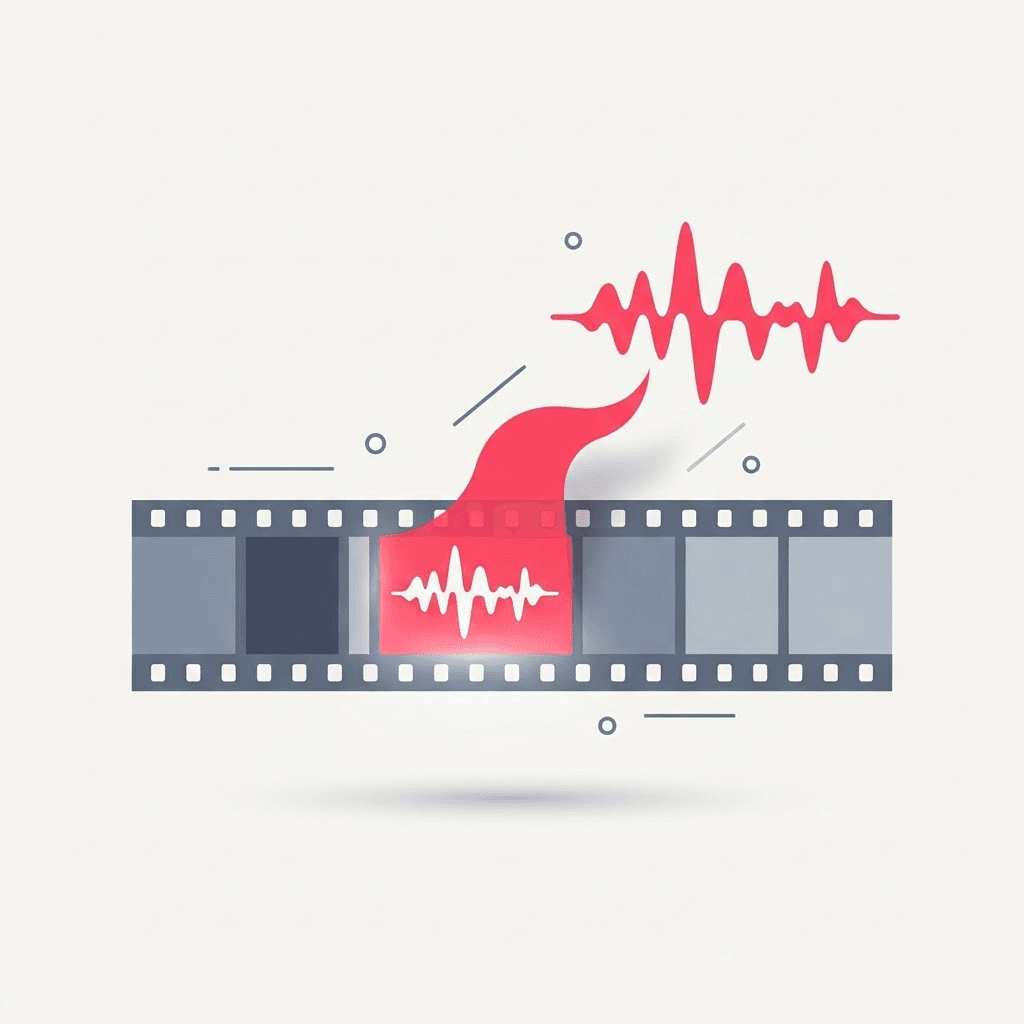
Sometimes you don't want the video at all — you just want what it sounds like. A recorded talk you'd rather listen to on a walk. A song from a live clip. A voiceover you need to drop into a different project. The picture is dead weight; you want the audio as its own file.
This used to mean installing something like a full media toolkit and remembering a command-line incantation. It doesn't anymore — you can pull a clean audio track out of a video in your browser in a few clicks.
Pulling the audio out
Drop in the video
MP4, MOV, WebM — whatever you've got. It's read locally in your browser, not uploaded.
Extract the track
The tool separates the audio stream from the video and hands you the sound on its own.
Save as MP3
Download the audio as an MP3 you can play, edit, or drop into another project.
Turning a talk or interview into audio you'll actually listen to? Extract the MP3, then run it through the transcriber too — now you've got a listenable file and a searchable text version of the same thing.
Common reasons people extract audio
- Turning a recorded webinar or lecture into a podcast-style listen for the commute.
- Lifting a voiceover or narration to reuse in a different edit.
- Saving music from a live performance clip you filmed yourself.
- Grabbing sound effects or ambience to layer into another video.
- Creating an audio-only version of a talk for accessibility or archiving.
MP3 vs. keeping the original quality
MP3 is the safe default: small, universal, and plays on literally everything. If the source audio is something you'll edit heavily or care about at a fine level — music you're mixing, for instance — you might prefer a format that doesn't re-compress, like WAV. For the overwhelming majority of uses, though, MP3 is exactly what you want, and the file size difference makes it easy to store and share.
Keep in mind the extractor can't add quality that wasn't there. If the video's audio was quiet, muffled, or compressed to begin with, the MP3 will faithfully reproduce that. Extraction is a copy operation, not a restoration — for cleanup you'd need a separate audio editor.
A quick word on rights
Extracting audio is trivial; owning the right to use it is the actual question. If it's your recording, go wild. If it's someone's music or a copyrighted talk, extracting the audio doesn't grant you a license to republish it. Personal listening is one thing; putting it in something public or monetized is another, and that's where you need permission.
Choosing the right output format
MP3 is the default for good reason, but it's not the only option and the right pick depends on what happens next. If you're just going to listen — on a walk, in the car, on your phone — MP3 is perfect: tiny, universal, plays on everything. If the audio is headed into a project where it'll be edited, layered, or processed, a format that doesn't re-compress preserves more to work with. Here's the quick mental model.
- MP3 — the safe universal default. Small files, plays everywhere, ideal for listening and casual reuse.
- M4A/AAC — slightly better quality at the same size than MP3; great for Apple devices and podcasts.
- WAV — uncompressed, largest files, best when you'll edit or master the audio and want zero added loss.
- The rule: listening → MP3; heavy editing → WAV; somewhere in between → M4A.
Turn a talk into a podcast-style listen
One of the most satisfying uses is converting recorded talks, webinars, and long interviews into audio you actually listen to. A 45-minute conference session you'd never rewatch becomes something you can play on a commute or a walk. Extract the MP3, drop it into whatever you use for podcasts or audiobooks, and you've turned dead-weight video into found time. Pair it with a transcript and you can both listen to the talk and search it later — the same recording serving two completely different needs.
When the audio needs cleanup
Extraction copies the sound exactly as it exists in the video — it can't remove hum, boost a quiet voice, or strip out room echo. If the source audio has problems, the MP3 will have the same problems. That's not a limitation of extracting so much as physics: you can't recover detail that was never recorded. For genuine cleanup — noise reduction, leveling, EQ — pull the audio out first, then take the MP3 into a dedicated audio editor. Separating the two steps keeps each tool doing the one thing it's good at.
Doing it on a phone versus a computer
The process is identical everywhere, but where the file lands differs. On a computer the MP3 drops into your Downloads folder, ready to drag into an editor, a podcast app, or cloud storage. On a phone it saves to Files, and from there you share it into whatever app needs it. If your video is already on your laptop, extract there — you'll skip the phone-to-computer transfer that eats more time than the extraction itself. If the clip only lives on your phone, doing it in the mobile browser is perfectly fine and saves you AirDropping a large video around just to pull a few seconds of audio out of it.
Grabbing just the part you want
Often you don't need the whole soundtrack — you want one line, the chorus, or a single sound effect. Extraction hands you the full audio from the clip; trimming it to the exact segment is a separate, quick step in any basic audio editor, and your phone's voice-memo app can even do a rough crop. The sensible order is to pull the complete MP3 first so you keep the full source, then cut a copy down to the piece you actually need. That way, if you later want a different section, you're not re-extracting from scratch.
A realistic idea of file sizes
Audio is tiny next to video, which is part of the appeal. Stripping the picture away typically shrinks a file by ninety percent or more, so a chunky video becomes an MP3 small enough to email or sync to a phone without a second thought. A few things nudge the size up or down.
- Length — a 45-minute talk is a bigger MP3 than a 30-second clip, but still a fraction of the source video.
- Bitrate — higher bitrate means better fidelity and a larger file; 128–192 kbps is plenty for speech and casual listening.
- Mono vs. stereo — a spoken-word recording in mono is smaller than stereo and loses nothing that matters for voice.
- Format — MP3 and M4A are compact; WAV is many times larger because it's uncompressed.
Try the Extract Audio from Video
Pull audio out of any video — free, no sign-up.
Frequently asked questions
What video formats can I use?
Common ones like MP4, MOV, and WebM all work. Drop the file in and the tool reads the audio track.
Is the file uploaded to a server?
No. Extraction happens in your browser, so the video never leaves your device.
Can I get a transcript of the audio too?
Yes — take the extracted MP3 and run it through the audio-to-text tool for a full transcript.
Will the audio sound better than in the video?
No — extraction copies the existing audio, it doesn't improve it. If the source was muffled or quiet, the MP3 will sound the same. Cleanup needs a dedicated audio editor.
Can I choose a format other than MP3?
Yes. MP3 is the universal default, but M4A/AAC gives slightly better quality at the same size, and WAV keeps the audio uncompressed if you plan to edit or master it. Pick based on what happens next: listening → MP3, heavy editing → WAV.
How long can the video be?
There's no fixed limit — a full lecture or webinar works fine. Because processing happens on your own device, a long recording simply takes a little longer to extract.
Will extracting the audio change the original video?
No. Extraction reads the file and produces a new audio file alongside it. Your original video is untouched.
Can I extract audio from a video someone sent me?
Technically yes, as long as you have the file. Whether you can use that audio for anything public is a separate, legal question — extraction doesn't grant you rights to copyrighted material.
Why is the extracted MP3 so much smaller than the video?
Because you've thrown away the picture, which is the overwhelming majority of a video file's size. Keeping only the audio typically cuts the file by ninety percent or more.