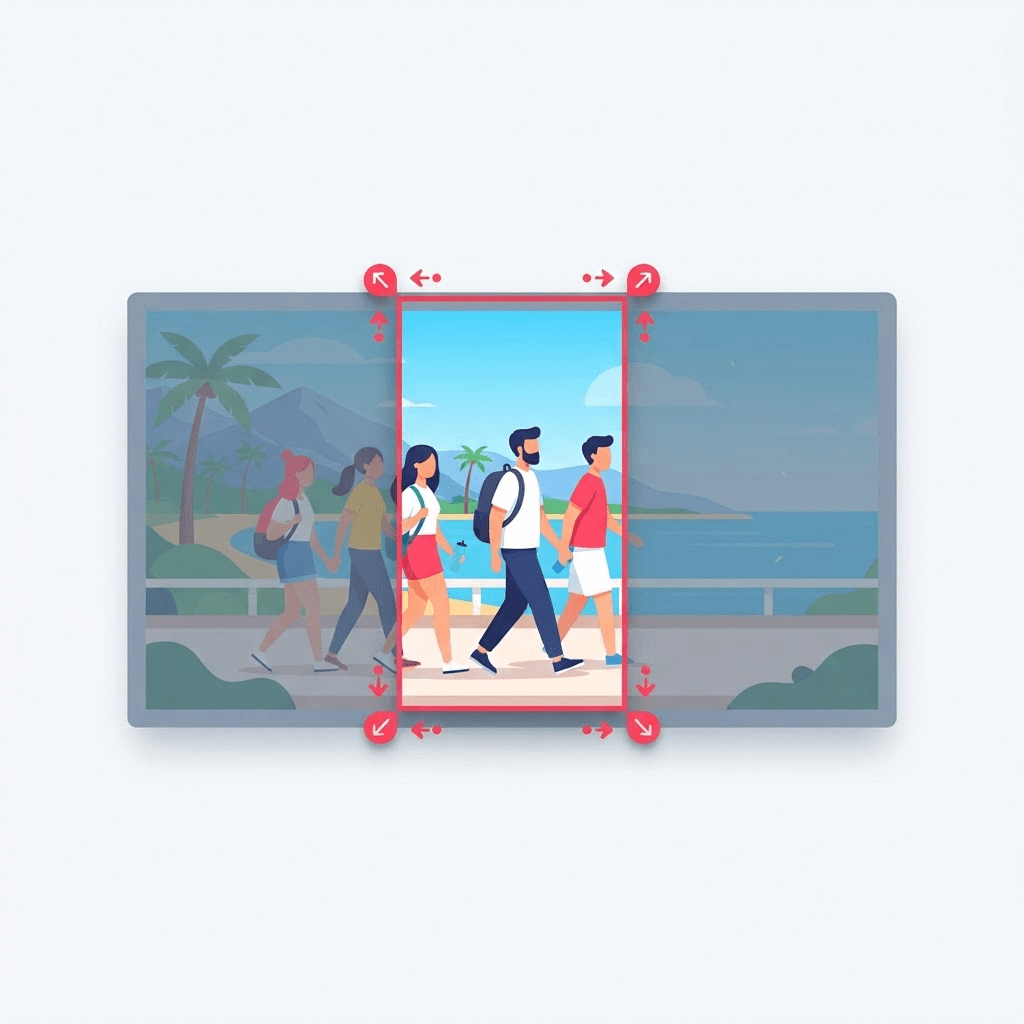
How to Download a TikTok Photo Slideshow (All Images, Full Quality)
TikTok photo carousels don't have a save button. Here's how to download every image from a TikTok slideshow in full resolution, plus the audio if you want it.
TikTok's photo mode — the swipeable image carousels set to music — has quietly become one of the most-used formats on the app. It's also one of the most annoying to save. The regular download button either grabs a low-res video render of the slideshow or refuses entirely, and screenshotting each slide gives you cropped, compressed images with the UI in the corners.
If you want the actual images — full resolution, no interface clutter, all of them at once — you need to pull them from the source instead of capturing them off your screen.
Download every slide at once
Copy the slideshow link
Open the photo post, tap Share, then Copy Link. Photo posts share exactly like video posts do.
Paste it into the slideshow downloader
The tool detects that it's a carousel and lists out every image in the post instead of treating it as one video.
Save the images
Download them individually, or grab the whole set bundled together so you're not clicking through eight separate saves.
The soundtrack behind a slideshow is separate from the images. If you want the music too, run the same link through the TikTok to MP3 converter and you'll have both the photos and the audio.
Why screenshots aren't good enough
A screenshot is a photo of your screen, not the original file. It's capped at your phone's resolution, it includes whatever was on screen at the time, and it's re-compressed by the screenshot process. If you're saving a slideshow for a mood board, a repost, or any use where the image actually needs to look sharp, screenshots fall apart the moment you zoom or crop. Pulling the source images sidesteps all of that.
There's also the interface problem. Screenshots capture the caption, the like and comment buttons, the progress bar, and whatever else TikTok layers on top. Cropping those out by hand, slide after slide, is exactly the kind of tedious job you started looking for a shortcut to avoid.
What you can do with the saved images
- Build a reference board or mood board without watermarks or UI clutter.
- Repost a carousel to Instagram or Pinterest starting from clean, full-res files.
- Archive your own photo posts before they get lost in your feed.
- Pull individual frames out to edit, print, or set as wallpaper.
Works on desktop too
People assume slideshow saving is a phone-only problem, but the same link-and-paste flow works from a laptop. If you're building a carousel of references or collecting images for a project, doing it on a bigger screen — where you can actually see and organize what you're downloading — is a lot less fiddly. Copy the link on your phone, text it to yourself, and finish the job on the computer.
Reposting a carousel to Instagram or Pinterest
Photo slideshows travel really well to other platforms because they're just images — no aspect-ratio wars, no watermark baked into a video. Once you have the clean source files, uploading them as an Instagram carousel or a Pinterest board is straightforward. The one thing to watch is ordering: download the slides in sequence and rename them 01, 02, 03 so they upload in the intended order rather than whatever order your file browser feels like.
If you're reposting someone else's carousel rather than your own, credit the original creator in the caption. It's the difference between curating and stealing, and on Pinterest especially, a clear source link is what keeps your account in good standing.
Keeping the images organized
- Rename files in sequence (01, 02, 03…) immediately so the carousel order survives re-uploading.
- Make one folder per post instead of dumping every slide into Downloads.
- Note the original creator's handle in the folder name if you'll credit them later.
- Keep the full-res originals even if you export smaller copies — you can always shrink later, but you can't add detail back.
What about the text overlays on the slides?
Some creators add captions or text directly onto their images before posting, and some rely on TikTok's overlay that sits on top of the photo at playback. When you pull the source files, you get the image as it was uploaded — so baked-in text stays, but TikTok's interface text does not. If a slide looks bare compared to what you saw in the app, that missing text was an overlay, not part of the image. There's no way to recover an overlay that was never part of the file; you'd have to recreate it yourself.
Full quality means full quality
The whole reason to pull source files instead of screenshotting is resolution, so it's worth being clear about what you get: the same image dimensions TikTok stored when the creator uploaded the post. That's typically far sharper than a screenshot, which is capped at your screen's resolution and re-compressed on the way out. If you plan to print a slide, use it as a wallpaper, or crop in tightly, this difference is the entire game — a screenshot falls apart the moment you zoom, and a source file holds up.
Try the TikTok Slideshow Downloader
Save TikTok photo carousels — free, no sign-up.
Frequently asked questions
Does it download all the images or just the first one?
All of them. The tool reads the full carousel and lets you save every slide, either one by one or as a bundle.
What resolution are the images?
Full source resolution — the same files TikTok stores, not screen-resolution screenshots.
Can I get the slideshow's music too?
Yes. The audio is a separate track; paste the same link into the TikTok to MP3 tool to grab it.
Do the saved images have the TikTok interface on them?
No. Because you're pulling the source files, there's no caption, no buttons, and no progress bar — just the clean photos.
Will the images upload to Instagram or Pinterest in the right order?
They will if you rename them in sequence (01, 02, 03…) before uploading. File browsers don't always preserve the original order, so numbering the files is the reliable fix.
Why is one slide missing its text?
That text was a TikTok overlay layered at playback, not part of the uploaded image. Source files keep text that was baked into the photo but not the app's overlays. You'd have to recreate an overlay yourself.
Can I download just one specific slide?
Yes. The tool lists every image in the carousel, so you can save just the one you want instead of the whole set.
Are the images good enough to print?
Generally yes, because you get the full source resolution rather than a screen-resolution screenshot. How large you can print depends on the original upload, but source files hold up to cropping and zooming far better than screenshots.