How to Download TikTok Videos Without the Watermark on iPhone
Save any TikTok to your iPhone camera roll without the bouncing username watermark — no shady app, no jailbreak, no App Store download required.
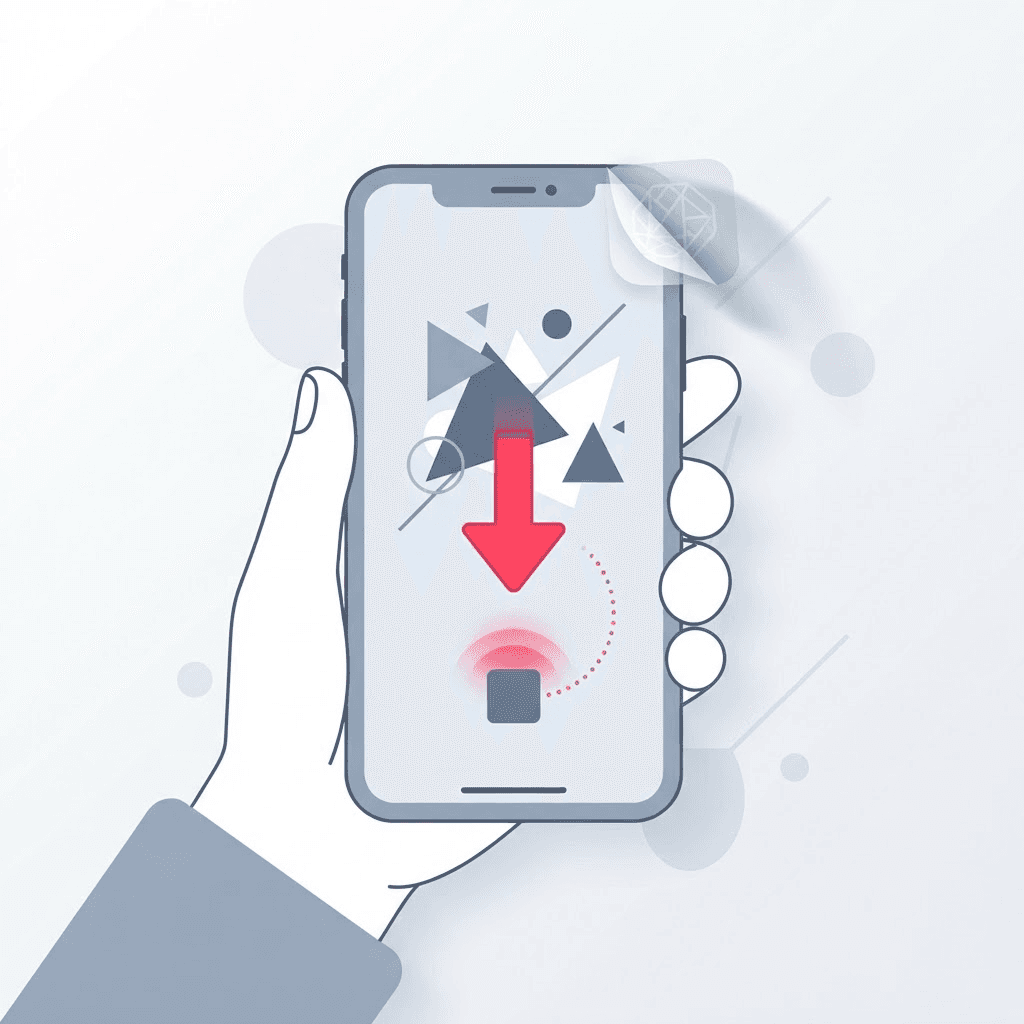
TikTok's built-in save button is fine until you actually look at what it gives you: a video with the creator's username stamped on top, bouncing from corner to corner, plus the TikTok logo baked in. If you're saving a clip to rewatch, that's whatever. If you're reposting it to a Reel, editing it into a compilation, or sending it to a client, that watermark is a problem.
The good news is you don't need an app for this. iOS makes people think you do because half the 'TikTok downloader' apps in the App Store are ad-farms that charge $4.99 a week for something your browser already does for free. You can skip all of that and do the whole thing in Safari in under a minute.
This guide covers the fast way, the small things that trip people up on iPhone specifically, why the watermark actually hurts your reach, and how to stay on the right side of copyright while you're at it.
The fastest way (Safari, no app)
Copy the video link in TikTok
Open the video, tap the arrow (Share), then tap Copy Link. That's the whole interaction inside the app — you never have to leave TikTok logged in or anything like that.
Open the downloader in Safari
Head to the TikTok video downloader and paste the link into the box. Long-press the field and hit Paste so you don't fat-finger it.
Download the clean MP4
Pick the no-watermark option. The file opens in a new tab; tap the share icon and choose Save to Files, or press and hold the video and tap Save to Photos.
If 'Save to Photos' doesn't appear, save to Files first, then open the Files app and share it into Photos from there. iOS is occasionally weird about saving video straight from a browser tab, and this two-step route works every single time.
iPhone-specific gotchas nobody warns you about
Most 'it didn't work' complaints on iPhone aren't the tool's fault — they're iOS being iOS. Before you assume something's broken, run through these.
- Low Power Mode can silently pause background downloads. If a save seems stuck, toggle it off and try again.
- If tapping the video just plays it fullscreen instead of offering a save, press and hold instead of tapping — the long-press menu is where 'Save to Photos' lives.
- Safari's content blockers occasionally hide the download button. If the page looks half-loaded, tap the 'aA' menu in the address bar and turn off content blockers for that site.
- Downloaded files land in Files › Downloads by default. If you can't find a clip, that's the first place to look before re-downloading it five times.
Why the watermark matters more than people think
Instagram and YouTube both actively suppress content that has a competitor's watermark on it. It's not a conspiracy theory — they've said as much in their creator guidance. So if you're pulling a TikTok to reuse on Reels or Shorts, the watermarked version isn't just uglier, it can quietly get less reach. Starting from a clean file and adding your own captions gives the algorithm nothing to flag.
There's a branding angle too. A bouncing @username that isn't yours sitting in the corner of your Reel tells every viewer exactly where you got it. A clean clip with your own text overlay looks like your content — because now, in presentation terms, it is. That's the difference between 'reposting' and 'repurposing'.
Doing this on a Mac or iPad instead
The exact same link-and-paste flow works on any device with a browser. On a Mac the saved file just drops into your Downloads folder, which is honestly less fiddly than the iPhone dance with the share sheet. If you're grabbing a batch of clips for an edit, do it on the biggest screen you have — you'll spend less time hunting through the share menu and more time actually working.
A note on private and copyrighted videos
This works on any public video. It won't work on private accounts or clips the creator has disabled downloads for, and honestly it shouldn't. Grabbing a clean copy of someone else's original video and passing it off as yours is a fast way to get a copyright strike. Download the stuff you made, or the stuff you have permission to use, and you're fine.
If your goal is to reference or react to someone else's clip, the safer play is transformation: add commentary, cut it into a larger piece, or credit the original creator clearly. Platforms are far more forgiving of content that obviously adds something than of a straight, uncredited re-upload.
Android and desktop: the same flow, fewer hoops
Everything above is written for iPhone because that's where iOS adds the most friction, but the process is identical on Android and on a computer — and honestly easier. On Android, Chrome saves straight to your Downloads folder without the share-sheet dance, and you can move the file into your gallery with one tap from the notification. There's no 'Save to Photos won't appear' problem because Android treats a downloaded MP4 like any other file.
On a laptop it's the least fiddly of all: paste the link, click download, and the clean MP4 lands in your Downloads folder ready to drop into an editor. If you're planning to actually do something with the clip — cut it, caption it, stitch it into a compilation — start on the desktop. You'll skip the whole phone-to-computer transfer step that eats more time than the download itself.
Saving a batch of clips without losing track
One clip is easy. Twenty clips for a compilation is where people create a mess for themselves — a Downloads folder full of files named video_7182.mp4, video_7183.mp4, and no idea which is which. A couple of small habits fix that before it starts.
- Rename each file the moment you save it, while you still remember what it is. 'dance-transition-clip.mp4' beats 'video_7291.mp4' every time.
- Make a dedicated folder per project instead of letting everything pile into Downloads.
- Grab the creator's handle in the filename if you plan to credit them later — it saves you scrolling back through TikTok to find who posted it.
- Download in the order you'll use the clips, so the file list roughly matches your edit timeline.
When the download won't start
If pasting the link does nothing, the usual culprit is the link itself. TikTok's share menu sometimes copies a shortened redirect or tacks tracking parameters onto the end. Open the link once in your browser so it resolves to the full video URL, then copy that from the address bar and paste it instead. Nine times out of ten that's the whole fix.
The other common cause is that the video simply isn't public — it's from a private account, or the creator switched off downloads and sharing. That's not something any tool can or should get around. If the clip is yours and set to private, flip it public for a moment, grab it, and switch it back.
Try the TikTok Video Downloader
Save any TikTok as a clean MP4 — free, no sign-up.
Frequently asked questions
Does this work without installing an app?
Yes. The whole process runs in Safari (or Chrome) on your iPhone — copy the link, paste it, save the file. There's nothing to install and nothing to sign into.
Will the saved video have the TikTok logo?
No. Choosing the no-watermark option fetches the clean source file, so there's no username overlay and no TikTok logo baked into the frame.
Where do downloaded videos go on my iPhone?
By default they land in the Files app under Downloads, or in Photos if you chose 'Save to Photos'. If a clip seems to vanish, check Files › Downloads first.
Can I save the video as an MP3 instead?
Yes — if you only want the audio, use the TikTok to MP3 converter with the same link and you'll get the sound as a downloadable MP3.
Is there a limit to how many videos I can download?
No hard limit. Because the work happens through your own browser, you can save as many public clips as you need, one link at a time.
Why does pasting the link do nothing?
Usually the copied link is a shortened redirect or has tracking parameters attached. Open it once in your browser so it resolves to the full video URL, then copy that from the address bar and paste it instead.
Can I download a video from a private account?
No. This only works on public videos. If a clip is from a private account or the creator disabled downloads, no tool can — or should — bypass that. If it's your own private video, make it public briefly, save it, then switch it back.
Is it safe to use a browser downloader instead of an app?
Yes, and it's usually safer. You never sign into TikTok on a third-party site and there's nothing installed on your phone. Many App Store 'downloader' apps are ad-heavy subscriptions that do exactly what your browser already does for free.
Does downloading a video notify the creator?
No. Saving a public clip through a browser is invisible to the creator — there's no notification and nothing shows up on their end.